Zoom webinars · web listeners · in the room
Translate your webinar or event for every attendee
The speaker keeps their own language. Every attendee follows in theirs, on Zoom, in a browser or on the screen in the room.
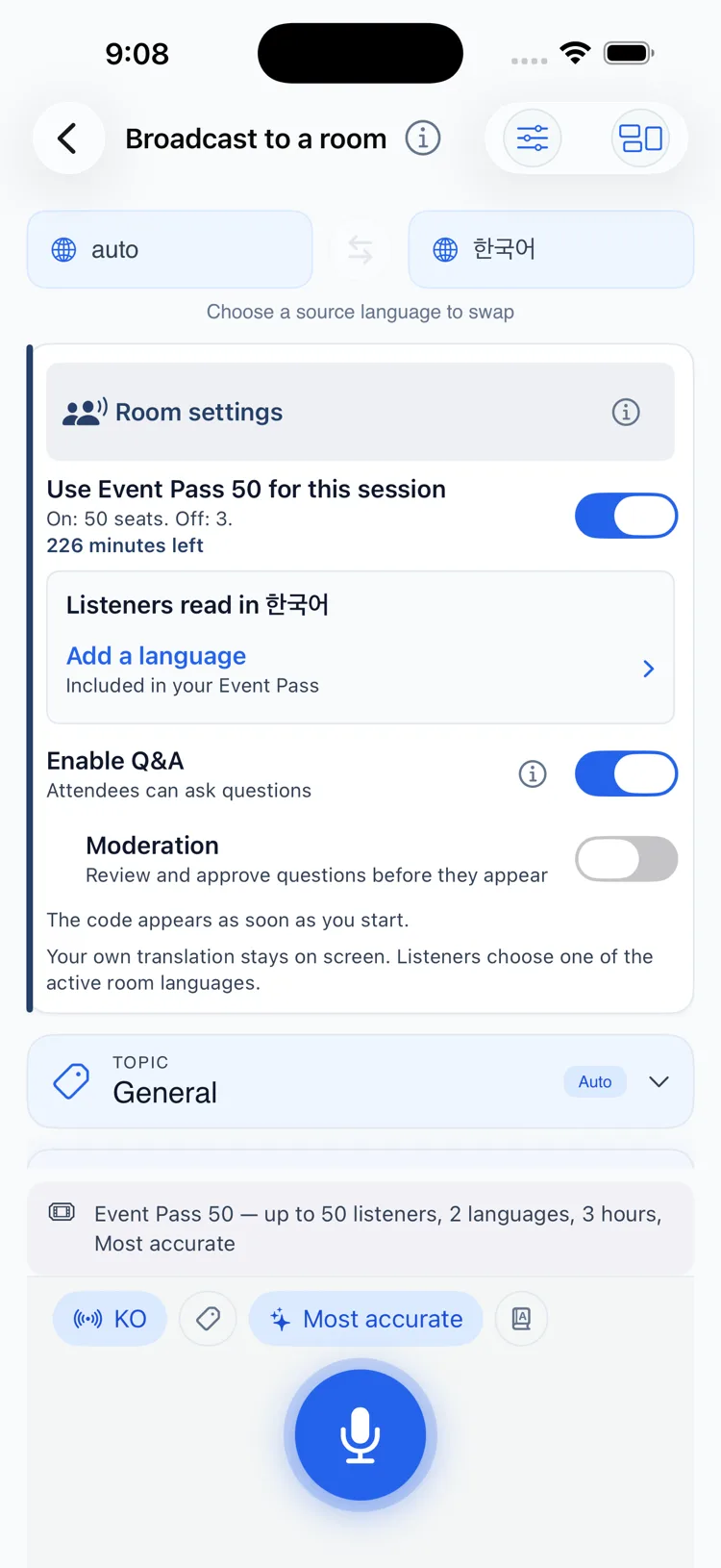
Multilingual audience Q&A
Following the talk is half of it. Attendees can also ask the host a question in their own language and read the reply in it.
How it works for the host
Attendees ask in their language. You read each question translated, choose which to answer, and reply in yours. The reply is translated back for everyone.
Audience Q&A is not self-serve yet. The QolSync AI team sets up and runs your first event with you.
Audience Q&A is a conversation with the host. Ask AI is separate: it helps one person explore a recording or transcript afterward.
Ask AIA translated Zoom webinar in six steps
Schedule the webinar in Zoom. Creating it from QolSync AI is coming soon.
Add QolSync AI from the Zoom App Marketplace.
Start the webinar as host and open QolSync AI from Apps.
Choose You speak and Attendees read, then pick an Event Pass.
Select Start and wait until the session is ready.
Expand Share Translation and select Push to All Attendees.
On your own channel
No webinar platform needed. Attendees join from a link or QR code and follow in their browser.
Attendees use their own phone
They scan a QR code, choose a language and read along. No app to install.
Captions on the big screen
Open the big-screen view from your browser on the venue display, for everyone in the room.
A translated voice for listeners
Attendees can listen to the translation in their language instead of reading it.
Hosting from the app on iPhone, iPad and Android is coming soon. Get the launch update
Before, during and after your Zoom event
Schedule the webinar, translate it live, then come back to the transcript and summary.
Create the webinar in Zoom, then add its link to your QolSync AI event
Creating Zoom meetings and webinars from your QolSync AI event is coming soon: the Scheduling integration is waiting for Zoom’s approval. Until then, schedule the webinar in Zoom and paste its link into your QolSync AI event.
When Scheduling arrives, it will be a separate integration from the live translation app, connected by an organization and Zoom Owner/Admin. It will need a Webinar 100, Webinar 300 or Unlimited plan and a licensed Zoom webinar host.
Scheduling integration guide (coming soon)Speak naturally. Everyone follows in their language.
Attendees open the audience view from a link or QR code, pick a language and read translated captions. With Audience Q&A, their questions reach you translated.
No app download for attendees. Available languages and features depend on the mode and plan.
See the audience experienceThe session ends. The transcript stays.
Go back to the transcript and summary, and ask AI about what was said.
Sharing and export options depend on the product and plan.